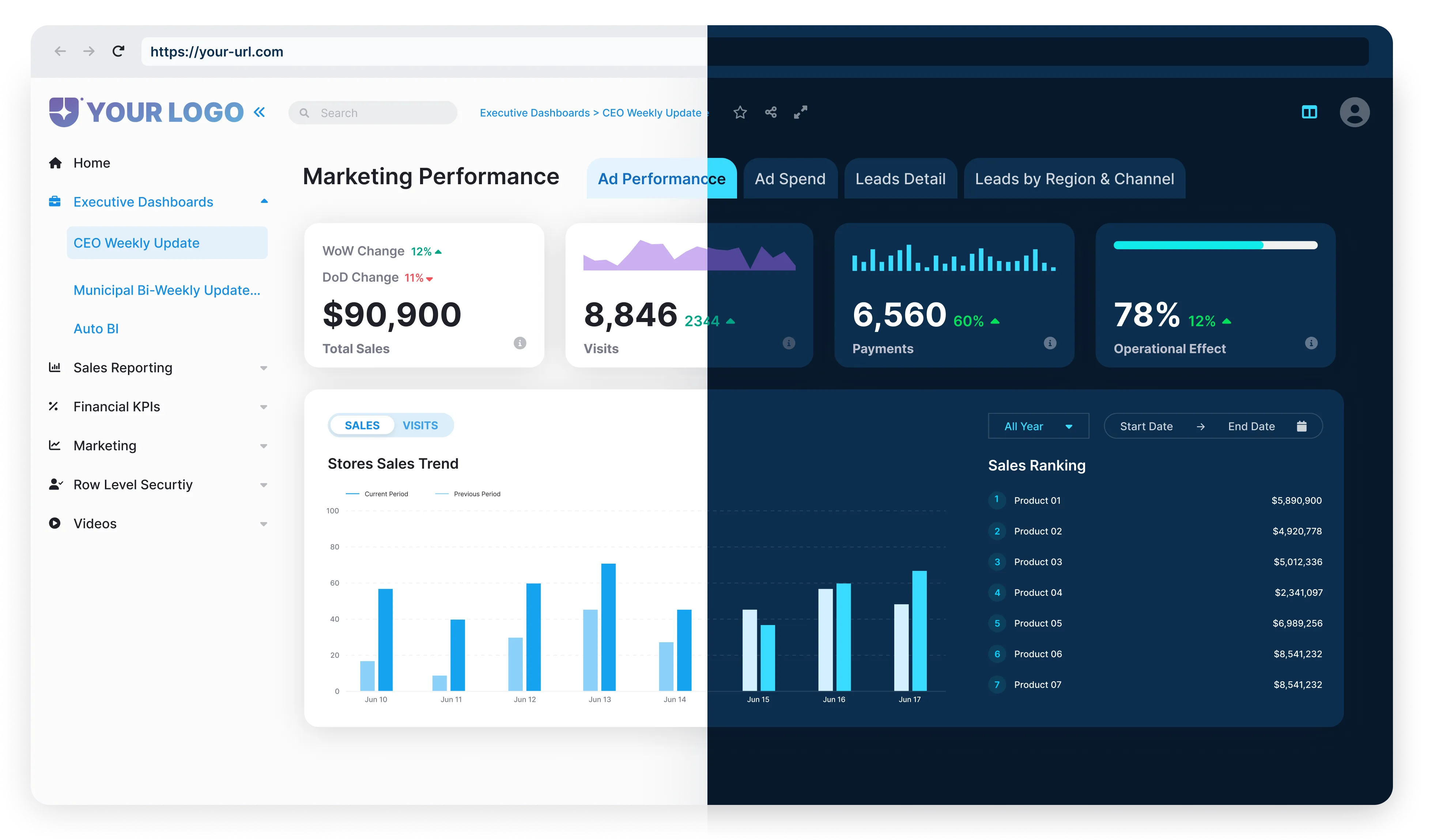



Excel is powerful for ad-hoc analysis, but manual refreshes and multi-sheet workflows become unsustainable at scale. Power BI automates these tasks while preserving Excel’s flexibility. Power BI gives you automation, real-time dashboards, and a cleaner way to handle data.
This guide is for Excel users who want faster insights, better visuals, and less manual work. We’ll walk you through what’s different, what you can reuse, and how to get started.
Why Make the Switch from Excel to Power BI?
Both Excel and Power BI can crunch data and build charts. But Power BI is built for scale.


For teams tired of clunky workarounds and copy-pasting data, Power BI is a major upgrade.
Power BI vs Excel: Key Differences for Beginners
Excel is built for calculations. Power BI is built for insights. While Excel formulas (e.g., SUM, VLOOKUP) calculate cell-by-cell, DAX measures dynamically aggregate data based on filters and relationships. For example, SUMX() iterates over tables, unlike Excel’s SUM(). Excel gives you PivotTables. Power BI gives you full data models. PivotTables help you summarize data fast. But Power BI takes that further with relationships, calculated columns, and measures across large datasets.
.webp)


Both tools work with Power Pivot, Power Query, and the Microsoft ecosystem. You can move between them easily. But Power BI was made for teams, scale, and speed. It helps you build dashboards, share insights, and make decisions faster. If you know Excel, you’re already halfway there. Power BI just takes you further.
What You Can Reuse from Excel in Power BI
Already built reports in Excel? Good news, you don’t have to start over in Power BI.
You can import Excel workbooks directly into Power BI Desktop. It brings over your Power Query steps, Power Pivot models, and even some charts. Once imported, Power BI creates a report for you. You can edit it, add visuals, and build on top of it.
The original Excel file stays untouched. Power BI creates a new .pbix file with the data and structure copied over.
- Power Query steps become Power BI queries. Simple Power Query/Pivot models transfer smoothly, but test complex relationships post-import. Use ‘Manage Relationships’ in Power BI to verify accuracy.
- Power Pivot data and relationships stay intact.
- Linked tables and measures move over, too.
You can either bring in a snapshot of the table or keep it connected to Excel. Your choice. Built-in formulas like calculated columns and KPIs also convert. Some data types, like images, may reset. If your Excel file lives in OneDrive or SharePoint, Power BI can auto-refresh the data every hour. Just publish or connect it once.
Want to update your semantic model?
You can hit “Publish” in Excel and push it straight to Power BI. Once imported, you’re in full Power BI mode—drag, drop, explore. No need to rebuild your work from scratch. Excel helps you get started. Power BI takes you further.
Building a Simple Dashboard: Excel Data to Interactive Visuals
Got your data in Excel? Perfect. You’re just a few clicks away from turning it into a live Power BI Dashboard. Let’s walk through it step by step.
- Ensure columns contain consistent data types (e.g., no numbers in text fields). Use Power Query’s ‘Detect Data Type’ to auto-clean before import.
- Add a header row.
- In Excel, go to the Home tab and choose Format as Table to finalize the setup.
That’s it, your workbook is Power BI–ready.
- Sign in and go to My workspace.
- Select New > Report, then choose Excel.
- Upload your file (you can browse or drag and drop).
- When prompted, select your table (like financials) and hit Create.
Power BI will build a semantic model from your data and open a blank canvas, ready for your visuals.
- On the right, in the Data pane, drag Profit onto the report canvas. Boom, you’ve got a column chart.
- Now, drag Date onto the same chart.
- Power BI automatically shows profits by year. Want more details? Click the double arrows to drill into quarters or months.
Tip: Check your aggregations. For example, make sure you’re summing profit, not counting it. You can change this in the Values section.
- Drag Country (or any category) onto the canvas.
- From the Visualizations pane, select Slicer.
- Now you (or your boss) can filter the whole dashboard by country in one click.
You can also add dropdown filters, multi-select checkboxes, and more to let viewers explore the data without needing help from a data analyst.
- Select each visual and choose Pin to dashboard.
- Create a new dashboard (or add to an existing one).
Now all your key insights live in one place, and they’ll continue to update automatically as your underlying data changes.
- Click Share in Power BI.
- You can send a direct link or post it directly into Microsoft Teams.
Your team can view and interact with real-time insights without being able to alter the visuals. It’s an easy way to keep decision-makers in the loop and confident in the numbers.
Common Mistakes When Switching from Excel to Power BI
Switching from Excel to Power BI offers great benefits, but it also means changing how you think about data. Here are some common mistakes to avoid:



- SUM() / AVERAGE() for basic aggregations
- CALCULATE() to modify the filter context
- RELATED() to pull data across relationships

- Grouping numeric values (e.g., age ranges)
- Avoiding timestamps unless necessary
- Using integers instead of text for IDs

How Reporting Hub Simplifies Your Power BI Transition
Switching from Excel or basic Power BI reports to a full analytics platform doesn’t have to be complicated. Reporting Hub makes it easy by offering prebuilt templates and white-label deployment directly in your own Azure environment. This means you control branding and security without the usual setup headaches.
With Reporting Hub, you get a centralized dashboard delivery that lets you share interactive Power BI reports with unlimited users—inside or outside your organization—without requiring viewers to have Power BI licenses. This saves you time, money, and hassle. You can share with unlimited viewers (no Pro licenses required), but monitor Azure capacity nodes (e.g., A4 vs. A6) for heavy usage.
Designed for consultants, teams, and product builders, Reporting Hub removes infrastructure barriers by integrating with your Power BI Tenant and Azure Active Directory. You can launch powerful analytics solutions fast and securely, without needing developers or complex setups.
Ready to simplify your Power BI journey?
Explore how Reporting Hub can transform your reporting experience and get started today!